Debugging I/O Variables
Debugging I/O variables is an essential part of developing and troubleshooting projects in logiccloud and an integral part of the remote debugging capabilities offered by the platform.
Accessing I/O Variables During Debugging
When you connect to a running instance of your project for remote debugging, you can access and monitor the I/O (access) variables defined in your project. These variables represent the interface between your PLC program and the outside world, allowing you to read data from sensors or other devices (inputs) and control actuators or other devices (outputs).
Note: To view and interact with I/O variables during debugging, ensure that the debugging service is enabled on the device where your project is running. For more information on enabling debugging, refer to the:
- How to enable debugging guide.
- Online Values guide.
Monitoring I/O Variables
Once connected to the running project, you can open the Inputs/Outputs panel in the IDE to view the current values of all I/O variables. This panel provides a comprehensive overview of the state of your inputs and outputs, allowing you to monitor and change their values in real-time:
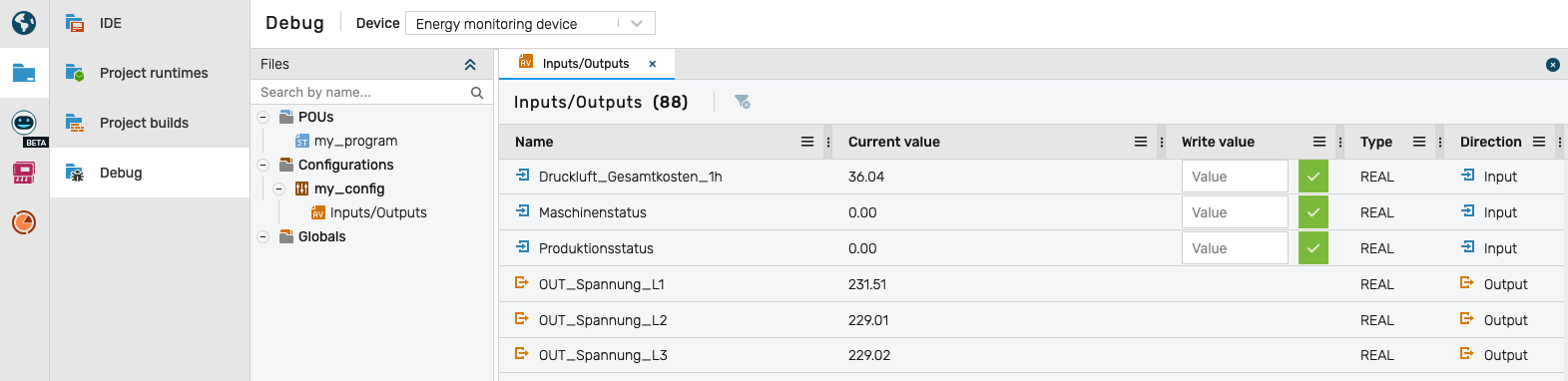
In this panel, you can see the following information for each I/O variable:
- Name: The name of the I/O variable as defined in your code.
- Current Value: The current value of the I/O variable, which updates in real-time as the project runs.
- Write Value: For output variables, you can set a new value to be written to the variable.
- Type: The data type of the I/O variable (e.g., INT, BOOL, REAL).
- Direction: Indicates whether the variable is an input or an output.
Modifying Output Variables
During a debugging session, you can modify the values of output variables directly from the Inputs/Outputs panel. To change the value of an output variable, simply enter the desired value in the Write Value field and click the Write button. The new value will be sent to the running project, allowing you to test how your program responds to different output conditions.
Note: Be cautious when modifying output variables, as changing their values can affect the behavior of your project and potentially lead to unintended consequences. Always ensure that you understand the implications of the changes you make during debugging.
Tip: The behavior of the program when modifying output variables will depend on the logic defined in your PLC code and the connectors linked to it. If a connector will override the output value, the change you made may not persist.