Online Values
In logiccloud, you can view the online values of variables in your running project directly from the IDE. This feature allows you to monitor the state of your variables in real-time, which is essential for debugging and ensuring that your project behaves as expected.
Viewing Online Values
To view the online values of variables in your project, first of all, the debugging service must be enabled on the device where your project is running. For more information on how to enable debugging, please refer to the How to enable debugging guide.
Once debugging is enabled, follow these steps to view the online values:
1. Open your project in the logiccloud IDE.
2. Go to the "Debug" tab in the IDE.

3. Connect to the device where your project is running:
At the top of the page there will be a drop-down with all debug-enabled devices running the current project. Select the device from the dropdown list to connect to it.
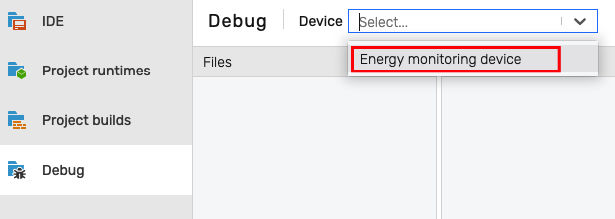
Note: Ensure that the device is online and that the debugging service is enabled. If the device is not reachable or the debugging service is not active, you will not be able to connect.
Tip: Sometimes, due to network issues or device status changes, the device may not appear in the dropdown list immediately. If you don't see your device, go to the device page and restart the debugging service.
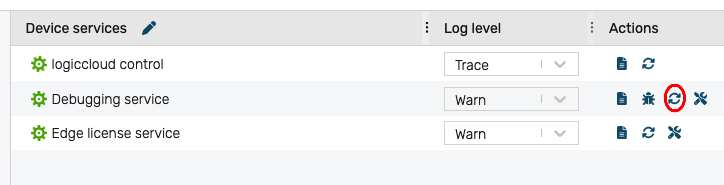
4. Once connected, the code corresponding to the version of your project running on the device will be displayed.
The IDE will automatically load the source code of the project running on the device at the specific build version. This ensures that you are viewing the correct code that corresponds to the running instance. The loaded code will be read-only to prevent any accidental modifications while debugging and will have the same structure as the original project.
If the debugging service is running on the device, you will see the online values of the variables displayed next to their definitions in the code.
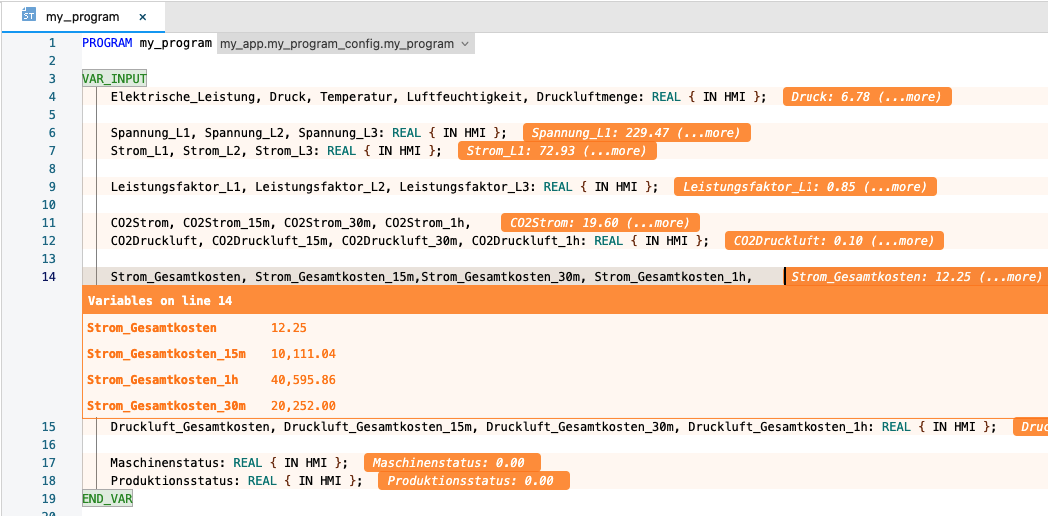
The online values are updated in real-time, allowing you to monitor changes as they occur during the execution of your project. This feature is particularly useful for identifying issues and understanding the behavior of your project under different conditions.
The online values are displayed in orange color to distinguish them from the static code. If more than one variable is defined on the same line or the variable contains a complex data type (like structures or arrays), you can click on it and it will expand, showing all details.
Application workflow
The variables are reported by the debugger on every cycle, whenever their value changes in the code. This means that if a variable's value remains constant over multiple cycles, it will not be reported again until it changes. This approach helps to reduce the amount of data being transmitted and focuses on significant changes in the variable states. This also allows following the logical flow of the application, as only the variables that are actively changing will be highlighted.
Debugging complex code like FUNCTION_BLOCK or FUNCTION
When debugging complex code structures like FUNCTION_BLOCK or FUNCTION, the online values feature in logiccloud provides a detailed view of the internal state of these constructs.
Because there can be multiple instances of a FUNCTION_BLOCK, when looking inside the FUNCTION_BLOCK definition, there will be a drop down at the top of the code view that allows you to select which instance you want to inspect. This is crucial for understanding how different instances of the same FUNCTION_BLOCK behave independently.
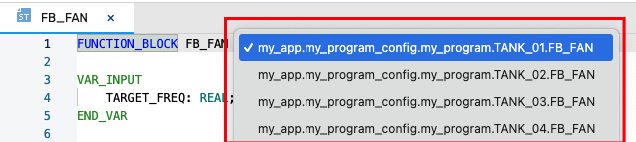
Similarly, for FUNCTION, if the function is called from multiple locations or with different parameters, you can select the specific call instance to view its online values. This helps in tracing how the function operates under various conditions.
Notes
Loops
If a variable is changed multiple times within a single cycle (for example, inside a loop), only the last value assigned to the variable during that cycle will be reported and displayed as the online value in that specific code location. This means that intermediate values assigned to the variable within the same cycle will not be shown. This behavior is designed to provide a clear and concise view of the variable's final state at the end of each cycle, which is typically the most relevant information for debugging purposes.
Nevertheless, if the variable value will change at a later point in the code during the same cycle, the online value will be updated accordingly at that specific code location.
Online behavior
Because the debugger will report only the variables that changed during a cycle, it is possible that some updates will not be visible in the code, especially if the program runs faster than the IDE can update the online values in the code view.
In this case, it is recommended to use a slower cycle time during debugging sessions to ensure that all variable changes are captured and displayed correctly in the IDE.
This adjustment helps in thoroughly monitoring the variable states and understanding the program's behavior during execution.